For digital product owners
Follow along with a link. Approve what goes live
You hired developers and want to see the work without needing to understand programming. A link shows who is on each task, what stage it's in and what moved today. When a delivery is ready, you see what changed, test it and approve it before it goes live.
Then R$50 per project per month, with unlimited people. You decide whether to continue.
- One link to follow everything, no account and nothing to install
- You approve each delivery before it goes live
- Stage and progress of each task, live
Tuesday, September 30
The team today
 RafaelBack-end#58 Coupon at checkoutTests2 today
 JúliaFront-end#61 New requests screenStaging3 today
 LucasMobile#57 Sign in with AppleProduction1 today
 GabrielBack-end#63 Shipping by ZIP codePlanningNothing today
What was done today
10:58 Lucas attached the evidence for #57
You pay the team. But can you see the work?
What you hear every week:
- 01
You don't see the work
The team says it's moving, but you don't know what was done today, or by whom.
- 02
The almost-ready that never arrives
With no stage or due date in view, the delay only shows up when it's too late to adjust.
- 03
Approving without seeing
The delivery arrives as "done". You haven't seen what changed or what it affects, and you find the problem later, with the user.
- 04
User complaining without proof
"It doesn't work", with no screenshot and no page. The team loses hours trying to find the error.
All of this has a solution. See below.
Your product, at a glance
No jargon, no spreadsheet and no need to ask. A link shows it, and you approve.
You don't see the workHome and board
Every person, every task, every stage
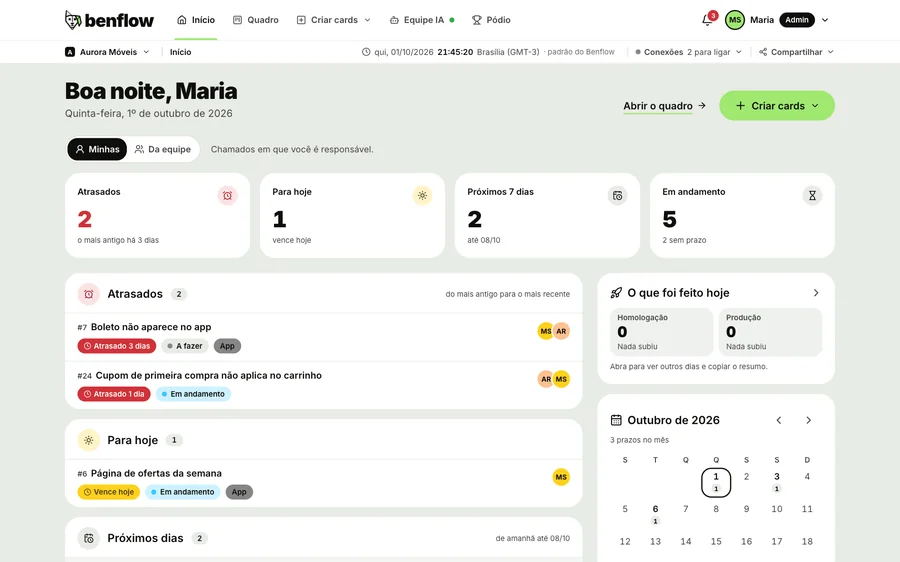
Home shows the team at a glance: what's overdue, what's due today, what's in progress and what was done today, with the time and who did it. The board shows the same, column by column, with the assignee on each card.
- My tasks or the team's, with one tap
- What was done today, with who did each item
- Daily summary in your email at 11:59 p.m.
The almost-ready that never arrivesStages and progress
The stage moves right in front of you
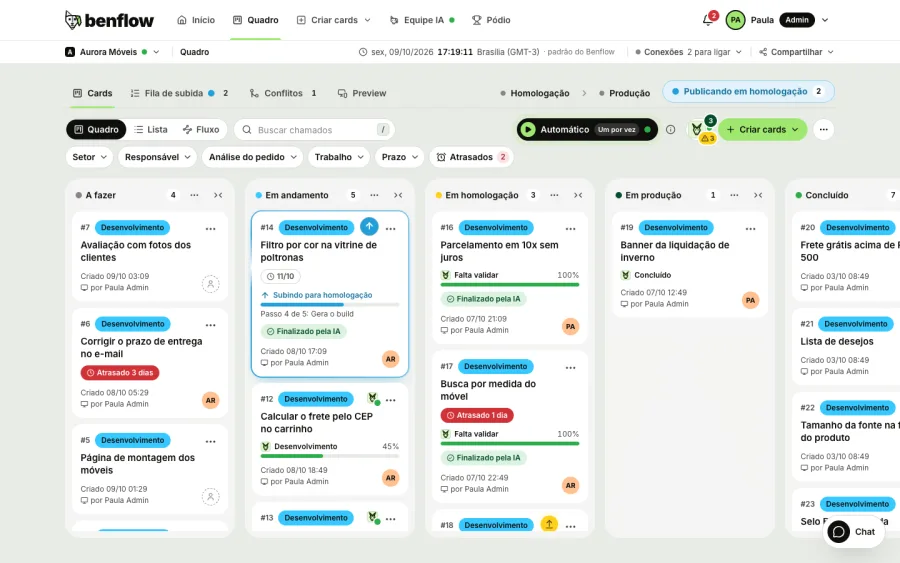
Each task shows the stage and percentage, updated by the team and the AI as they work. Delays show up before they become a problem: on the board, in the link's timeline and in the end-of-day summary.
- The banner at the top of the card shows the stage and percentage
- Overdue in red, on the board and in the timeline
- Each task's due date on the link's calendar
Approving without seeingApproval
You approve before it goes live
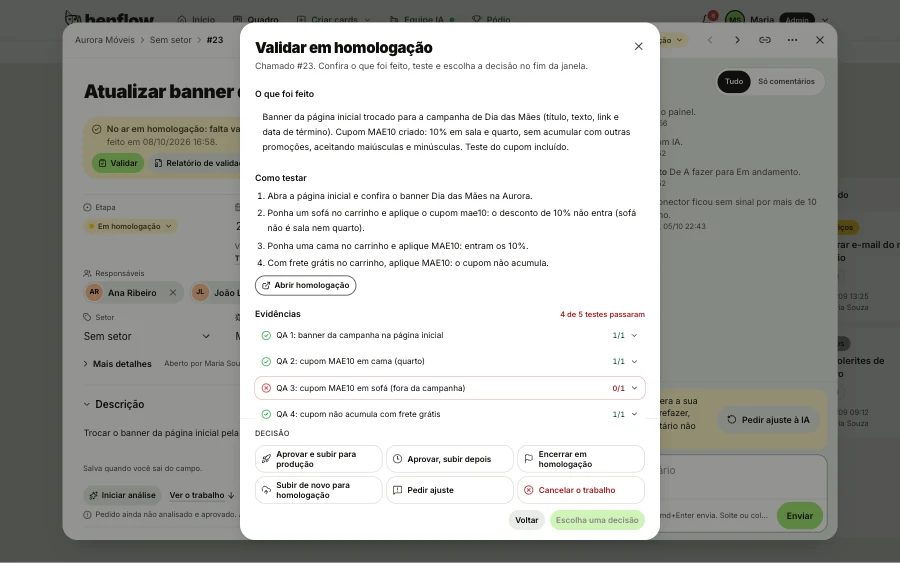
When the delivery is ready, it reaches you in a single window: what was done, how to test it, the tests that passed and a short video of what changed. You try it on a test copy of the product, separate from the one users use, and decide.
- Video and screenshots of what changed before approving
- A test copy, separate from what's live
- Approve and go live, or Request changes
User complaining without proofSupport button
A support button inside your product
Put the benflow button on your site or app. The user asks for help right there, with a screenshot, video or audio, and the request reaches the team with the page and the errors the browser saw.
- Whoever asks doesn't need to create an account
- The user follows and replies through the same button
- Your team installs it in minutes, or you use a direct link
Request #87 sent
Follow along here. The reply arrives on this same button.
Promoting without knowing what worksMarketing with AI
Research, pieces and schedule for your product
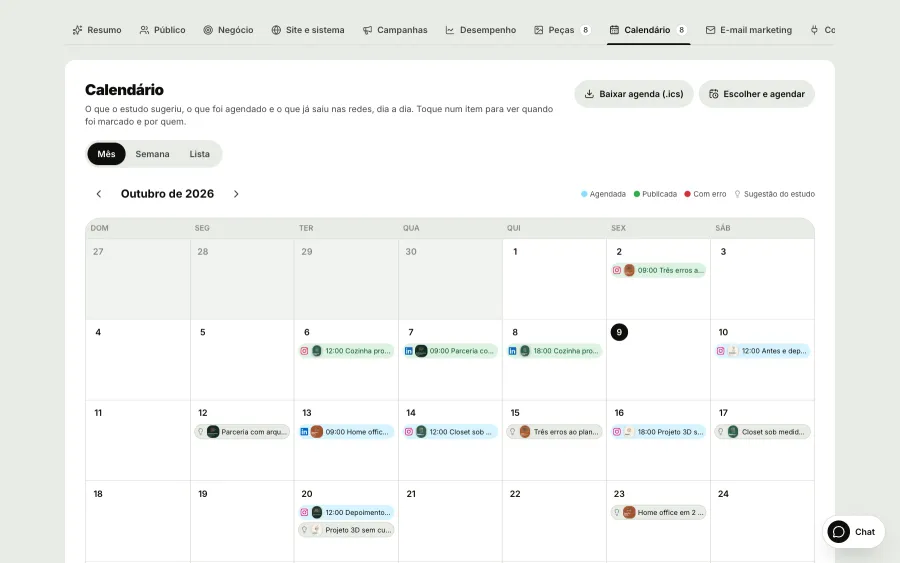
Turn on marketing and the AI studies your product like an agency would: who it's for, the business and its strengths and weaknesses. It creates pieces with your brand and builds the month's schedule, published to Instagram and LinkedIn at the set time. With Google Analytics and Search Console connected, visits and Google searches feed into the research and campaigns.
- Persona, audience and SWOT analysis of the product
- Ready-made pieces and the month's schedule
- Visits, conversions and Google searches in one place
One link to follow everything, live
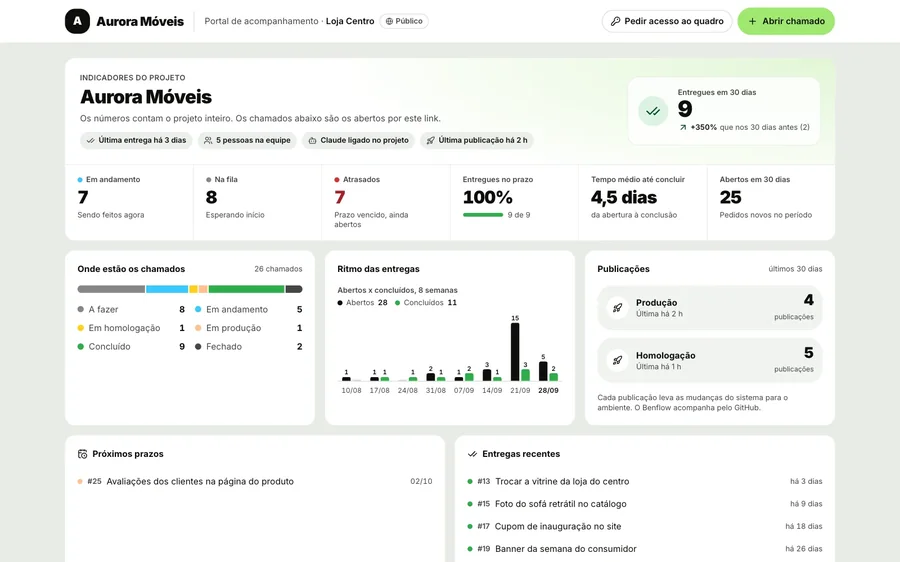
Send the link to partners and investors, or open it on your phone. The week's numbers, the board, the timeline with today's line and the due-date calendar, with your product's branding. No account and nothing to install.
- Timeline with today's lineOne bar per task, from start to due date, with the overdue in red and the stage written on the bar.
- Project numbersDeliveries in 30 days, weekly pace and what went live, at the top of the link.
- With a password, if you likeOpens in the browser of whoever has the link. It costs the project nothing.
New in benflow, for your product
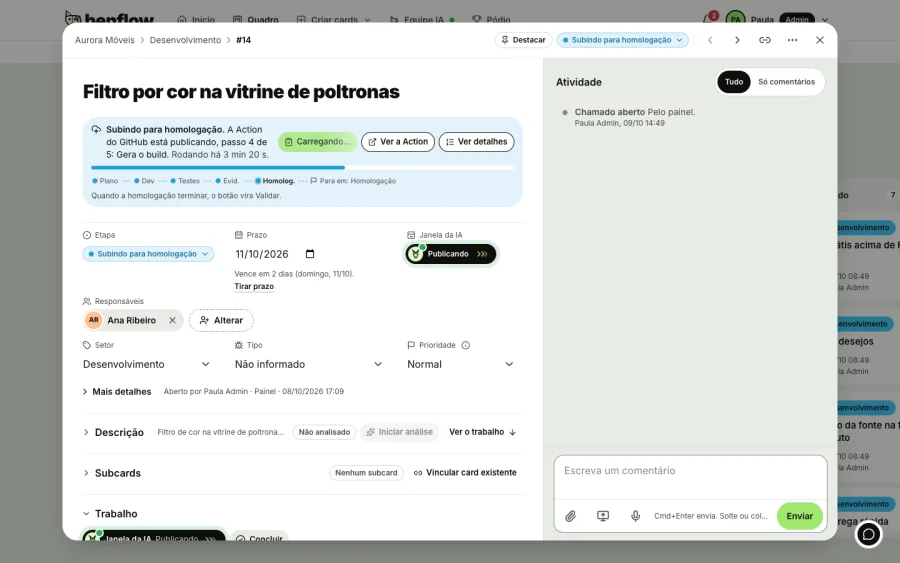
You see the delivery on its way live, the site on computer and phone and the AI picking up the next tasks.
The delivery on its way live, in view
The task being released moves to the top of the column and shows the step it's on: blue on its way to the test copy, green on its way live.
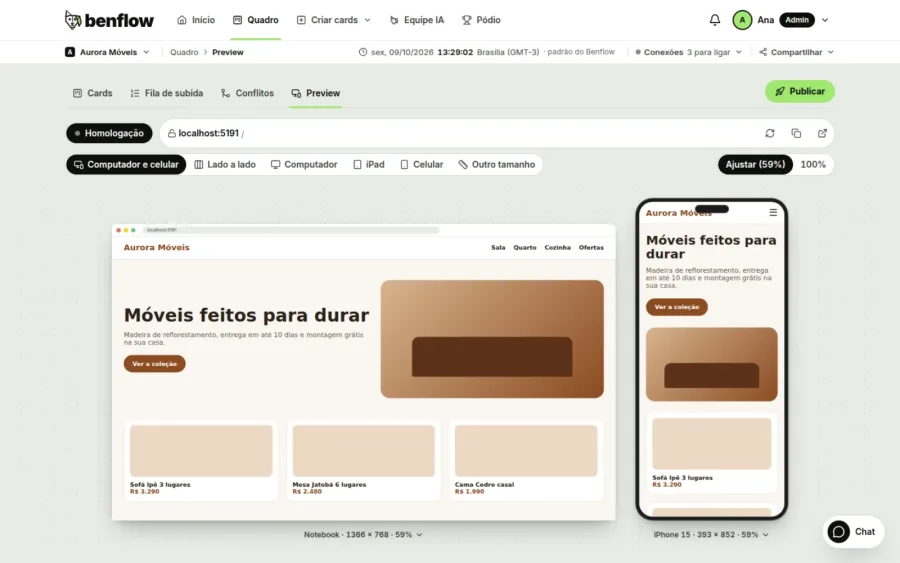
The site on computer and phone
See your site on computer and phone at the same time, on the test copy or live, without leaving the panel.
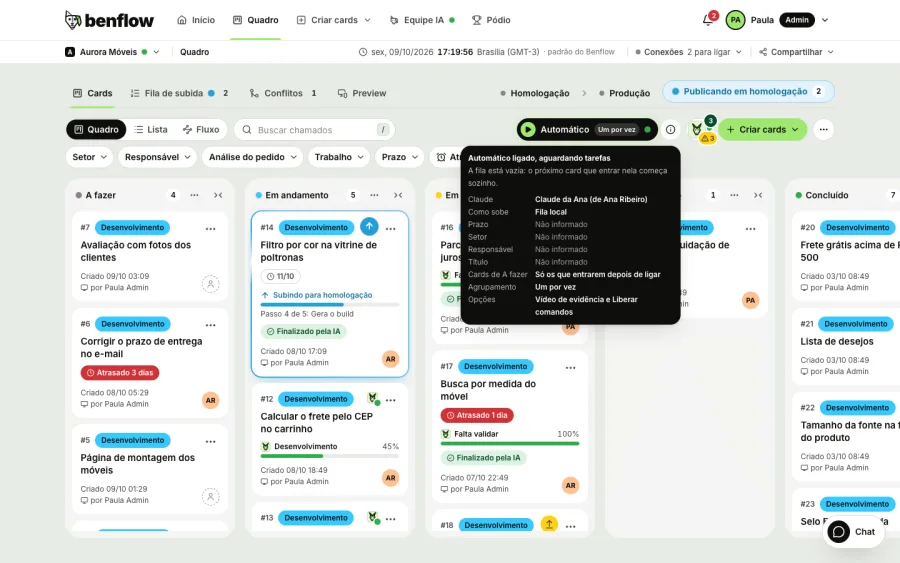
Auto
The team turns on auto mode and the AI picks up the next tasks in the queue on its own. It can hold each delivery for your approval, before going live.
Live
Live network
A live map with the cities of people who use benflow: every card that's born and every delivery that goes live lights up instantly, with no client names.

From idea to live, you see everything
Share the idea, follow each stage through the link and approve knowing what changes. No programming knowledge needed.
For whoever decides the product
- The team at a glanceWho has what, the stage and what moved today.
- Timeline, board and calendarIn the panel and in the tracking link, live.
- Approval with videoWatch a short video of what changed before approving.
- Impact explainedThe team's AI shows, in plain language, what each change affects.
- Support buttonYour users ask for help from inside the product.
- Password-protected linkShare the tracking only with those who need to see it.
Do I need to know how to code?
No. The panel speaks plain language: stage, due date, who is doing it and what was done. What each change affects also comes explained.
How do I approve a delivery?
When the task reaches your stage, the card opens a window with what was done, how to test it, the tests and the video of what changed. You try it on the test copy and choose Approve, which puts it live, or Request changes.
What is staging?
It's the name the team gives to the test copy of your product, where the delivery sits for you to try before going live. In the panel it shows up as a stage of the task, and that's where you approve or request changes.
Does inviting more people cost more?
No. People are unlimited: billing is per project only. To just follow along, the link is enough.
How does the support button get into my product?
Your team pastes a ready-made snippet into the site or system, in minutes. If nobody is available to do that, there's a direct link that opens the button full screen.
Can I see what was done in a given period?
Yes. What was done shows today, yesterday, 7 days, a single day or a range, with who did each item and the time each one went live.
Do I need Google Analytics to use marketing?
No. The research, pieces and schedule work without it. With Google Analytics and Search Console connected, visits, conversions and Google searches feed into the research and campaigns.
benflow is also for
See your product starting today
Then R$50 per project per month, with unlimited people. You decide whether to continue.
- Panel ready instantly
- Price per project
- Unlimited people
- Cancel anytime